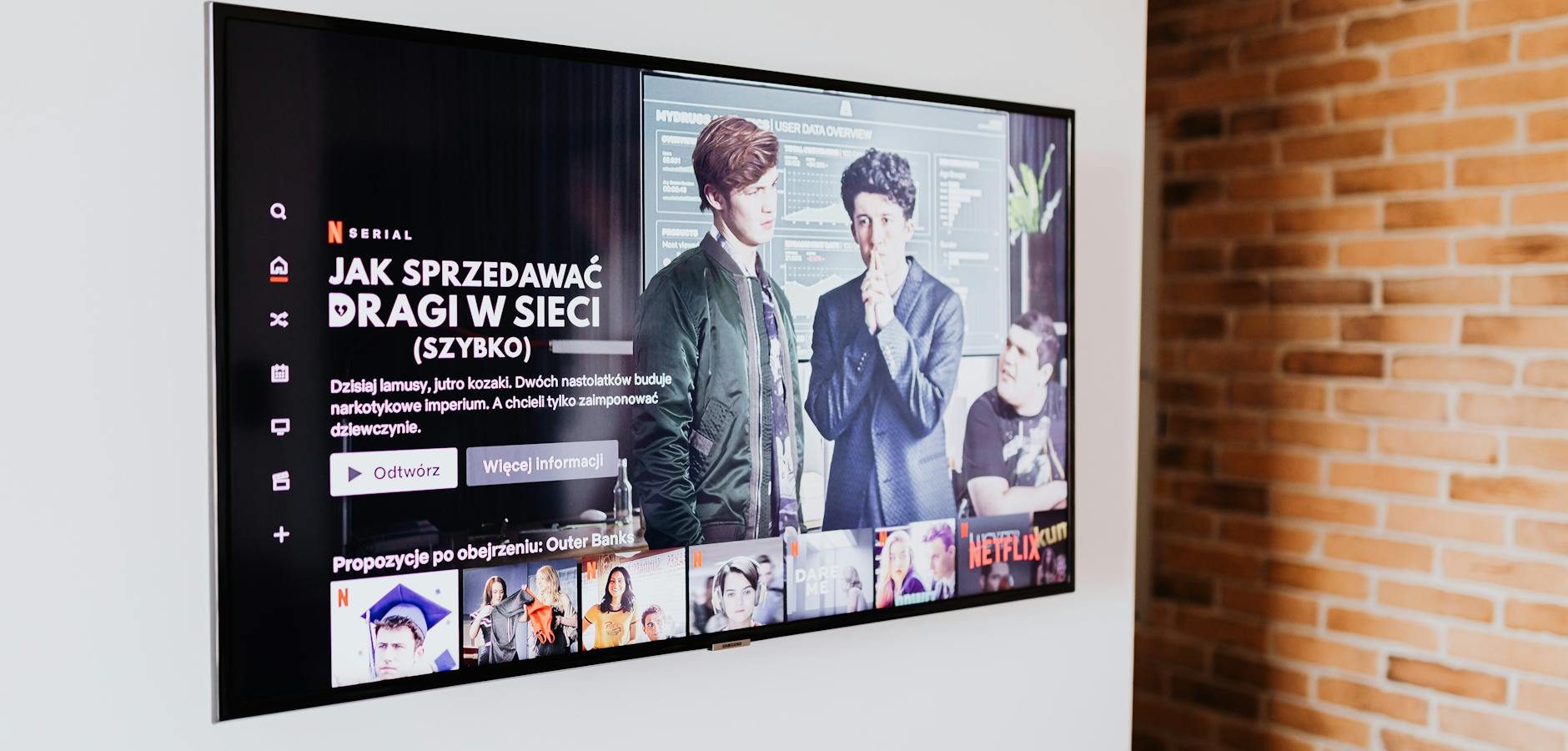
Troubleshooting Xumo Play Issues on Fire TV Stick
Having trouble with Xumo Play on your Fire TV Stick can be frustrating, especially when you’re ready to dive into your favorite shows. The Fire TV platform is known for its versatility and ease of use, but like any technology, it can encounter hiccups. Let’s delve into some common issues and solutions to get you back to streaming seamlessly.
Understanding Fire TV and Xumo Play
The Fire TV Stick is a popular streaming device that brings a vast array of content to your television. It’s known for its user-friendly interface and compatibility with major streaming services, including Xumo Play. However, sometimes these services may not function as expected.
What is Xumo Play?
Xumo Play is a free streaming service offering a wide variety of live and on-demand content, from news and sports to entertainment and lifestyle. It’s an excellent addition to the Fire TV ecosystem.
Common Issues with Fire TV
Despite its reliability, users occasionally face challenges with their Fire TV devices, such as app crashes, connectivity problems, or performance lags. Understanding these issues is the first step towards resolution.
Why Xumo Play Might Be Down on Fire TV
Several factors can lead to Xumo Play not working on your Fire TV Stick. These issues might be app-related, device-specific, or due to network problems.
App-Specific Issues
Sometimes, the problem lies within the Xumo Play app itself. Corrupted data or outdated software can cause the app to malfunction.
Device-Related Problems
Your Fire TV Stick might be experiencing issues such as storage overload or a need for a system update, affecting app performance.
Network Connectivity Problems
Poor internet connection or interference can cause streaming interruptions. Ensuring a stable connection is crucial for uninterrupted viewing.
Step-by-Step Troubleshooting Guide for Fire TV
To resolve issues with Xumo Play on your Fire TV Stick, follow these steps:
1. Restart Your Fire TV Stick
- Unplug the Fire TV Stick from the power source.
- Wait for about 30 seconds.
- Plug it back in and allow it to restart.
This simple step can resolve many minor glitches.
2. Update Your Fire TV Stick
Ensure your Fire TV Stick is running the latest software version, which can improve performance and fix bugs.
For guidance, refer to How to Block Fire TV Stick 4K Plus Updates Easily.
3. Clear Cache and Data of Xumo Play
- Go to Settings on your Fire TV.
- Select Applications.
- Choose Manage Installed Applications.
- Find Xumo Play and select it.
- Click Clear Cache and Clear Data.
This can help resolve app-specific issues.
Enhancing Your Streaming Experience on Fire TV
Optimizing your Fire TV Stick’s performance can enhance your overall streaming experience.
Optimize Device Settings
Adjusting settings such as video resolution and sound output can improve performance. For more tips, visit Resolving Amazon Fire TV 4K Max Display Issues.
Use Efficient Apps
Choose IPTV apps that are optimized for Fire TV. Check out Best IPTV Apps for Firestick in 2026 for recommendations.
Maintain a Steady Internet Connection
A strong and reliable internet connection is critical for smooth streaming. Consider upgrading your router or using a wired connection if possible.
Frequently Asked Questions
What is the Fire TV Stick?
The Fire TV Stick is a streaming media player by Amazon that allows you to access a wide range of content on your TV.
How do I update my Fire TV Stick?
To update your Fire TV Stick, go to Settings > My Fire TV > About > Check for System Update.
Why is my Fire TV Stick buffering?
Buffering can be due to slow internet speeds or network interference. Ensure a stable internet connection for optimal performance.
Can I use Xumo Play for free?
Yes, Xumo Play is a free streaming service offering a variety of live and on-demand content.
How do I clear cache on Fire TV Stick?
Navigate to Settings > Applications > Manage Installed Applications, select the app, and choose Clear Cache.
Conclusion: Get Back to Streaming on Fire TV
With these troubleshooting steps, you should be able to resolve any issues you’re facing with Xumo Play on your Fire TV Stick. Enjoy uninterrupted streaming and make the most of your viewing experience. If you’re interested in exploring more about IPTV services, check out our Complete IPTV Guide 2026 for comprehensive insights.
Frequently Asked Questions
What is the Fire TV Stick?
The Fire TV Stick is a streaming media player by Amazon that allows you to access a wide range of content on your TV.
How do I update my Fire TV Stick?
To update your Fire TV Stick, go to Settings > My Fire TV > About > Check for System Update.
Why is my Fire TV Stick buffering?
Buffering can be due to slow internet speeds or network interference. Ensure a stable internet connection for optimal performance.
Can I use Xumo Play for free?
Yes, Xumo Play is a free streaming service offering a variety of live and on-demand content.
How do I clear cache on Fire TV Stick?
Navigate to Settings > Applications > Manage Installed Applications, select the app, and choose Clear Cache.