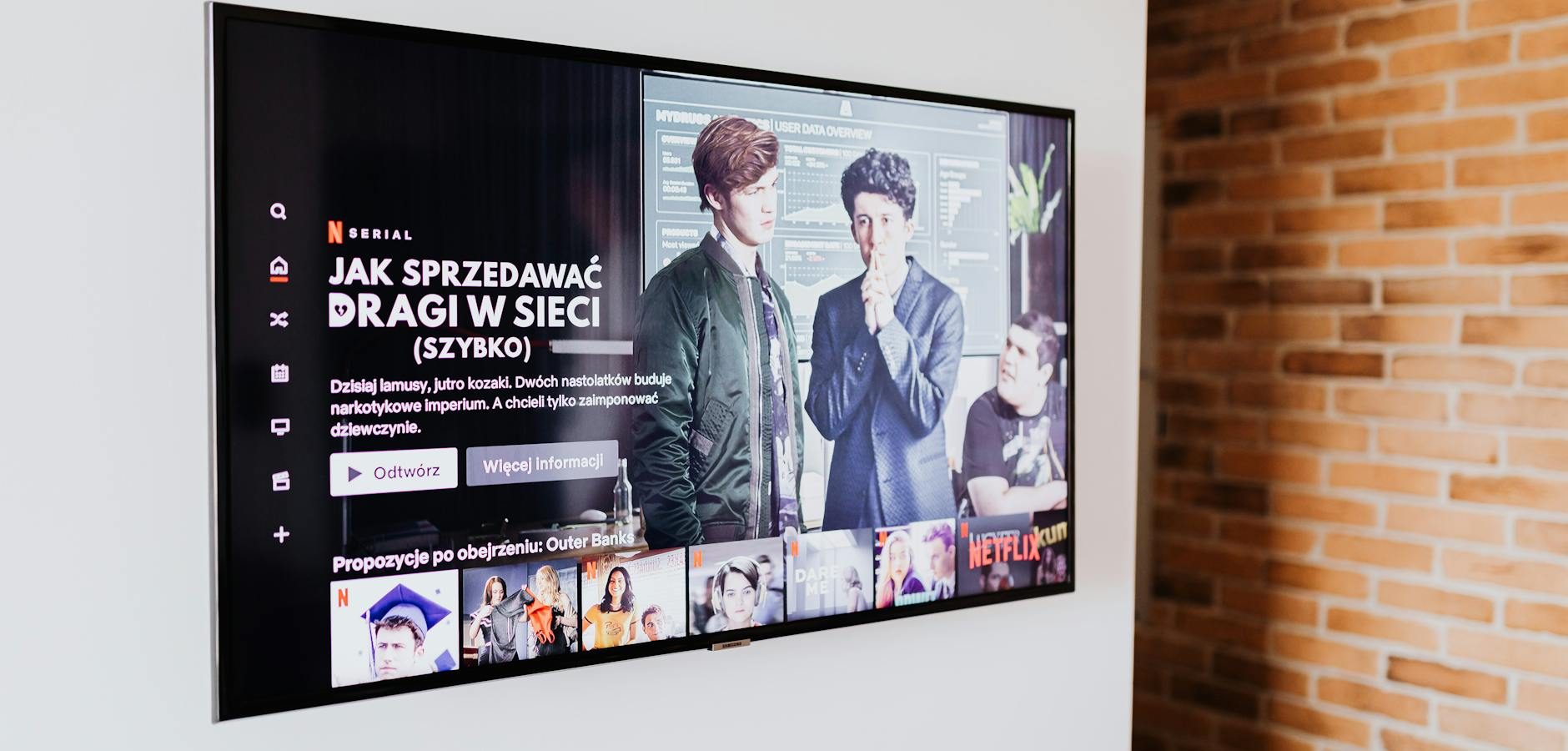
Experiencing Xumo Play issues on your Fire TV Stick can be frustrating, especially when you’re looking forward to streaming your favorite shows. In this guide, we’ll explore practical solutions to resolve these issues, ensuring your Fire TV experience remains seamless.
Understanding the Fire TV and Xumo Play Compatibility
The Amazon Fire TV Stick is a popular streaming device that offers access to numerous apps, including Xumo Play. However, compatibility issues can sometimes arise, leading to service disruptions.
Checking Device Compatibility
Before troubleshooting, ensure your Fire TV Stick is compatible with the latest version of Xumo Play. Check for any available updates for both your device and the app.
Ensuring App Updates
Regular updates are crucial for app functionality. Go to your Fire TV settings and check for any pending updates for Xumo Play. Updating can resolve many streaming issues.
Common Fire TV Issues Affecting Xumo Play
Several common issues can affect Xumo Play on Fire TV, including connectivity problems, app glitches, and device malfunctions. Let’s explore these issues and their solutions.
Network Connectivity Problems
Network issues are a frequent cause of streaming problems. Ensure your Fire TV Stick is connected to a stable Wi-Fi network. Consider restarting your router or moving it closer to your device for a stronger signal.
Clearing Cache and Data
Clearing the cache and data of the Xumo Play app can resolve minor glitches. Navigate to Settings > Applications > Manage Installed Applications, select Xumo Play, and clear cache and data.
Advanced Troubleshooting Techniques for Fire TV
If basic troubleshooting doesn’t work, advanced techniques may be necessary. These methods require more technical steps but can effectively resolve persistent issues.
Resetting Your Fire TV Stick
Resetting your Fire TV Stick can eliminate persistent issues. Go to Settings > My Fire TV > Reset to Factory Defaults. Note that this will erase all your data, so consider it a last resort.
Reinstalling Xumo Play
Uninstalling and reinstalling Xumo Play can often resolve app-specific issues. To do this, navigate to Settings > Applications > Manage Installed Applications, select Xumo Play, and choose Uninstall. Then, reinstall the app from the Amazon Appstore.
Preventing Future Issues with Fire TV
To avoid future problems with Xumo Play on your Fire TV Stick, consider these preventive measures.
Regular Maintenance
Regularly check for updates and perform basic maintenance, such as clearing cache, to keep your Fire TV Stick running smoothly.
Using Reliable Internet Services
Ensure you have a reliable internet service with sufficient bandwidth for streaming. According to Cord Cutters News, a stable internet connection is crucial for uninterrupted streaming.
Frequently Asked Questions
Here are some common questions about Xumo Play on Fire TV:
How do I check for updates on my Fire TV Stick?
Navigate to Settings > My Fire TV > About > Check for Updates. Install any available updates to ensure optimal performance.
Why is Xumo Play buffering on my Fire TV?
Buffering can occur due to network issues. Ensure a stable internet connection and consider reducing video quality to improve streaming.
Can I use a VPN with Xumo Play on Fire TV?
Yes, using a VPN can enhance security and potentially improve streaming speeds. Make sure to choose a reputable VPN service.
Is Xumo Play free on Fire TV Stick?
Yes, Xumo Play is free to use on Fire TV Stick, offering a wide range of channels and on-demand content.
What should I do if Xumo Play keeps crashing?
Try clearing the app cache, restarting your Fire TV Stick, and reinstalling the app. If issues persist, contact Xumo Play support for assistance.
Conclusion
Experiencing Xumo Play issues on your Fire TV Stick can be resolved with the right troubleshooting steps. By following the guidance above, you can ensure a smooth streaming experience. For more streaming tips and updates, subscribe to our newsletter and never miss out on the latest in IPTV solutions.
Frequently Asked Questions
How do I check for updates on my Fire TV Stick?
Navigate to Settings > My Fire TV > About > Check for Updates. Install any available updates to ensure optimal performance.
Why is Xumo Play buffering on my Fire TV?
Buffering can occur due to network issues. Ensure a stable internet connection and consider reducing video quality to improve streaming.
Can I use a VPN with Xumo Play on Fire TV?
Yes, using a VPN can enhance security and potentially improve streaming speeds. Make sure to choose a reputable VPN service.
Is Xumo Play free on Fire TV Stick?
Yes, Xumo Play is free to use on Fire TV Stick, offering a wide range of channels and on-demand content.
What should I do if Xumo Play keeps crashing?
Try clearing the app cache, restarting your Fire TV Stick, and reinstalling the app. If issues persist, contact Xumo Play support for assistance.