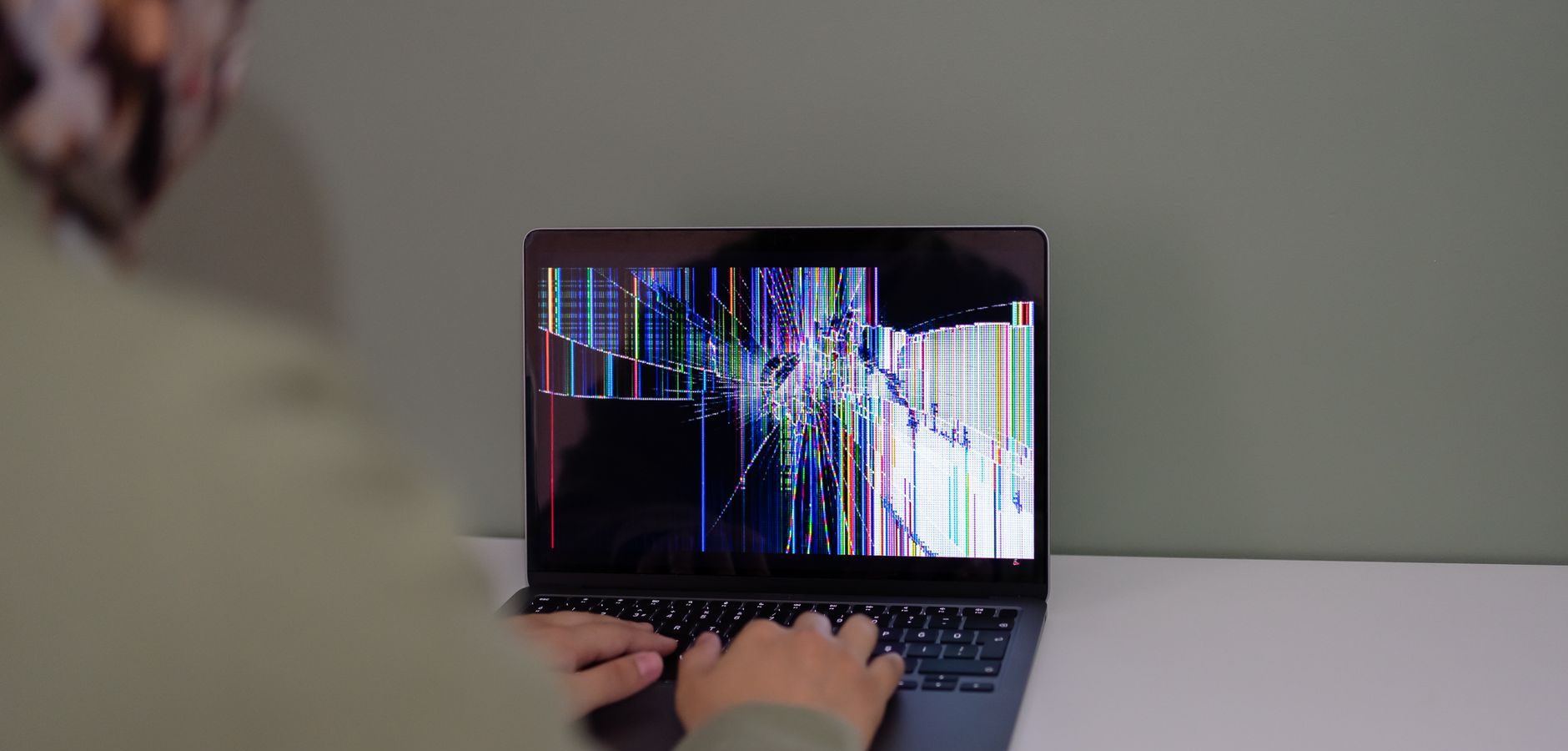
Introduction to Firestick Troubleshooting
If your Firestick is your primary source of entertainment, running into issues can be incredibly frustrating. Whether it’s a problem with BeeTV, Unlinked, or other streaming apps, getting your Firestick back in working order is crucial. In this guide, we’ll walk you through common issues and practical solutions to get your Firestick up and running smoothly.
Common Firestick Issues and Their Fixes
App Crashing or Not Opening
Experiencing app crashes or apps not opening on your Firestick can be frustrating. To resolve this, try clearing the app cache by navigating to Settings > Applications > Manage Installed Applications and selecting the app. Click Clear Cache and then Clear Data.
Firestick Not Connecting to Wi-Fi
A common issue is the Firestick not connecting to Wi-Fi. Ensure your router is working and that you’re within range. Restart both your Firestick and router. If the issue persists, refer to our troubleshooting guide for Firestick connection issues.
BeeTV and Unlinked Issues on Firestick
BeeTV Not Working
If BeeTV isn’t working, you might need to check for updates or reinstall the app. For more detailed assistance, explore our article on BeeTV status on Firestick.
Unlinked Redirecting to Dropload
Being redirected to Dropload instead of downloading files is a common issue. It could be related to browser settings. Check out our tips on resolving Firestick Silk Browser issues.
Optimizing Firestick Performance
Clearing Cache and Data
Regularly clearing cache and data helps maintain performance. Go to Settings > Applications > Manage Installed Applications, select any app, and choose Clear Cache.
Uninstall Unused Apps
Freeing up storage by uninstalling unused apps can significantly improve performance. Navigate to Settings > Applications > Manage Installed Applications and remove any apps you don’t use.
Using Firestick Legally
It’s essential to use your Firestick legally to avoid repercussions. For guidance, read our article on using a reported Firestick legally.
Enhancing Your Firestick Experience
Exploring Legal IPTV Services
Consider switching to legal IPTV services to enhance your streaming experience. For a comprehensive understanding, check out our Complete IPTV Guide 2026.
Regular Updates
Ensure your Firestick and apps are regularly updated to the latest versions for optimal performance and security.
Frequently Asked Questions
- How can I reset my Firestick?
To reset your Firestick, go to Settings > My Fire TV > Reset to Factory Defaults. Confirm your selection to reset.
- Why does my Firestick keep buffering?
Buffering issues can arise from slow internet speeds or app cache. Try restarting your router and clearing app cache.
- Is it safe to use Firestick for streaming?
Yes, using a Firestick is safe for streaming, provided you use legitimate apps and services.
- How do I install apps on Firestick?
To install apps, use the Amazon Appstore on your Firestick. Navigate to the app, select it, and choose Download.
- What to do if Firestick remote is not working?
If your Firestick remote isn’t working, try replacing the batteries or resetting the remote by holding down the Home button for 10 seconds.
Conclusion: Get Your Firestick Back on Track
Troubleshooting your Firestick doesn’t have to be daunting. By following the steps in this guide, you can resolve most issues quickly and enjoy uninterrupted streaming. If problems persist, consider consulting a professional for further assistance. Happy streaming!
Frequently Asked Questions
How can I reset my Firestick?
To reset your Firestick, go to Settings > My Fire TV > Reset to Factory Defaults. Confirm your selection to reset.
Why does my Firestick keep buffering?
Buffering issues can arise from slow internet speeds or app cache. Try restarting your router and clearing app cache.
Is it safe to use Firestick for streaming?
Yes, using a Firestick is safe for streaming, provided you use legitimate apps and services.
How do I install apps on Firestick?
To install apps, use the Amazon Appstore on your Firestick. Navigate to the app, select it, and choose Download.
What to do if Firestick remote is not working?
If your Firestick remote isn’t working, try replacing the batteries or resetting the remote by holding down the Home button for 10 seconds.