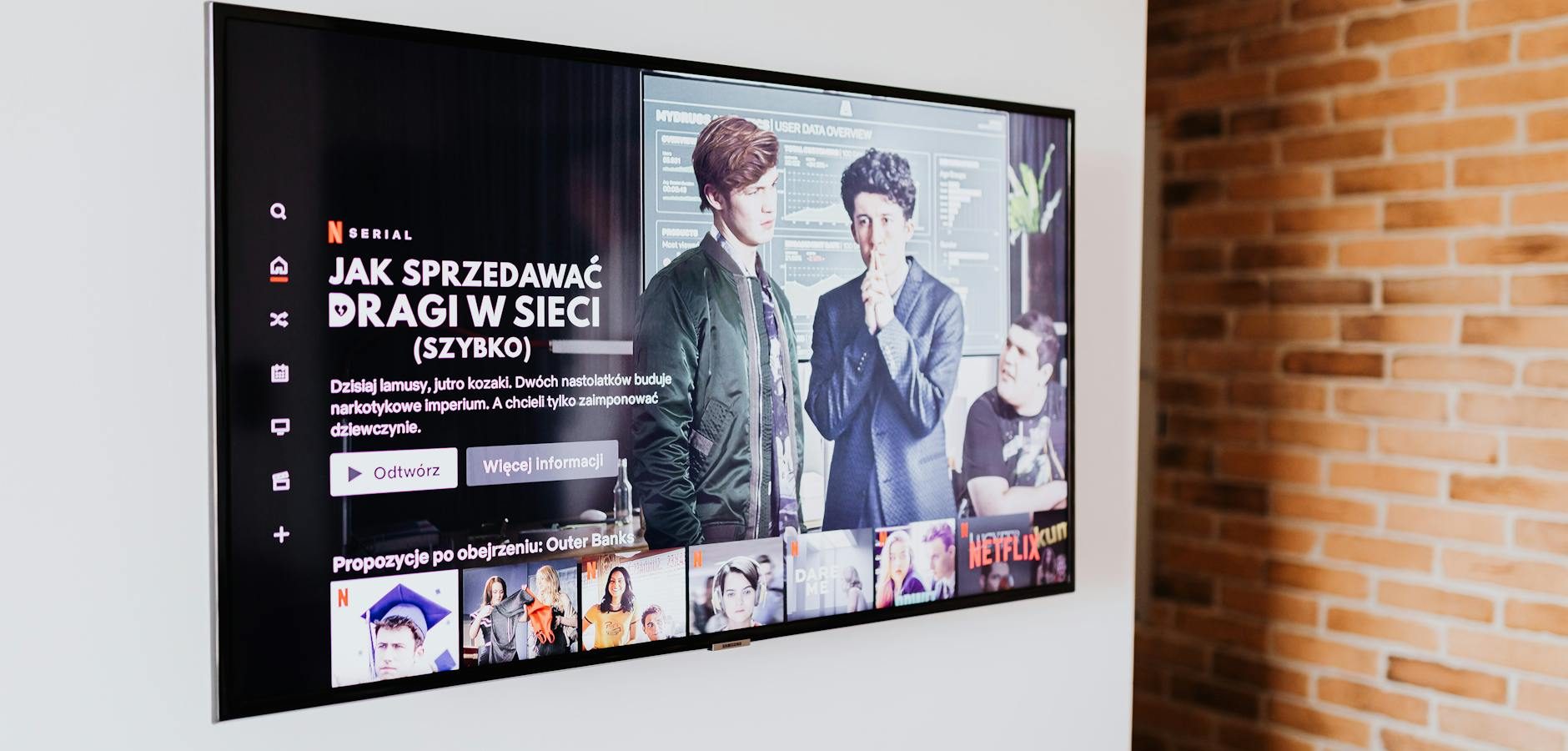
In today’s digital age, the smart TV has become a staple in modern households, offering a seamless blend of entertainment and connectivity. As more people embrace the versatility of smart TVs, the demand for customizable features like alternative screen savers grows. Screen savers not only protect your screen from burn-in but also add a personal touch to your home entertainment setup.
Understanding Screen Savers for Smart TV
Screen savers have evolved significantly from their original purpose of preventing burn-in on CRT monitors. On a smart TV, they serve as both a functional and aesthetic feature. By customizing your screen saver, you can transform your TV into a digital art display or a serene visual experience.
Why Customize Your Screen Saver?
Customizing your screen saver on a smart TV offers numerous benefits. It can reflect your personality, showcase your favorite photos, or provide ambient lighting. Moreover, it can enhance the overall aesthetic of your living space.
Choosing the Right Screen Saver
When selecting a screen saver, consider factors such as energy consumption, visual appeal, and compatibility with your smart TV’s operating system. Some popular options include moving art, photo slideshows, and weather displays.
Top Alternative Screen Savers for Your Smart TV
To make your smart TV experience more enjoyable, consider these alternative screen savers:
1. Art Galleries
Transform your smart TV into a rotating art gallery. Services like Artcast offer a vast selection of high-resolution images from famous artists and photographers. This option is perfect for art enthusiasts looking to enjoy masterpieces from the comfort of their home.
2. Photo Slideshows
Display your cherished memories by setting up a photo slideshow as your screen saver. Many smart TVs allow you to connect to cloud storage services, making it easy to showcase your favorite moments.
3. Nature Scenes
For those who appreciate the serenity of nature, consider screen savers that display breathtaking landscapes or underwater scenes. These can add a calming effect to your home environment.
Setting Up Screen Savers on Different Smart TV Brands
Different smart TV brands offer varying methods to set up and customize screen savers. Here’s a quick guide:
Samsung Smart TV
For Samsung users, setting up a screen saver is straightforward. Access the settings menu, navigate to ‘General’, and select ‘Ambient Mode’. From there, choose your preferred screen saver option. For more detailed instructions, refer to our Samsung Smart TV setup guide.
LG Smart TV
LG smart TVs offer similar customization options. Go to the settings menu, select ‘All Settings’, and then ‘Screen Saver’. Here, you can choose from a variety of pre-installed options or upload your own images. For more tips, check our LG Smart TV guide.
Google TV
Google TV users can set up screen savers by accessing the ‘Settings’ menu, selecting ‘Device Preferences’, and then ‘Screen Saver’. Google Photos is a popular option for displaying personal photo galleries.
Enhancing Your Smart TV Experience
Beyond screen savers, there are many ways to enhance your smart TV experience. Consider exploring different IPTV services, which offer a wide range of channels and on-demand content. Our Complete IPTV Guide provides valuable insights into choosing the best service for your needs.
Streaming Options
Take advantage of streaming platforms like Netflix, Hulu, and Disney+ to access a vast library of movies and TV shows. Many smart TVs come with these apps pre-installed, making it easy to start watching your favorite content.
Using Your Smart TV for PC Use
Smart TVs can also double as computer monitors, providing a large display for work or gaming. For recommendations on budget-friendly models, check our article on Best Budget Smart TVs.
Frequently Asked Questions
- How do I change the screen saver on my smart TV? Most smart TVs have a settings menu where you can access screen saver options. Check your TV’s user manual for specific instructions.
- Can I use my photos as a screen saver on a smart TV? Yes, many smart TVs allow you to upload personal photos for use as a screen saver. You can do this via a USB drive or cloud storage.
- Do screen savers consume a lot of energy? Screen savers typically use minimal energy, but it’s always a good idea to check your TV’s energy settings to ensure efficiency.
- Are there free screen saver options available? Yes, many smart TVs come with free pre-installed screen savers, and some apps offer additional free options.
- Can I use third-party apps for screen savers? Depending on your smart TV’s operating system, you may be able to download third-party apps for additional screen saver choices.
Conclusion
Customizing your smart TV with an alternative screen saver is a simple yet effective way to enhance your viewing experience. Whether you prefer displaying art, personal photos, or serene nature scenes, the possibilities are endless. Dive into the world of smart TV customization and discover the full potential of your device. For more tips on maximizing your smart TV usage, explore our article on Reducing TV Costs with Smart Choices. Start personalizing your smart TV today and transform your living room into a hub of entertainment and style.
Frequently Asked Questions
How do I change the screen saver on my smart TV?
Most smart TVs have a settings menu where you can access screen saver options. Check your TV’s user manual for specific instructions.
Can I use my photos as a screen saver on a smart TV?
Yes, many smart TVs allow you to upload personal photos for use as a screen saver. You can do this via a USB drive or cloud storage.
Do screen savers consume a lot of energy?
Screen savers typically use minimal energy, but it’s always a good idea to check your TV’s energy settings to ensure efficiency.
Are there free screen saver options available?
Yes, many smart TVs come with free pre-installed screen savers, and some apps offer additional free options.
Can I use third-party apps for screen savers?
Depending on your smart TV’s operating system, you may be able to download third-party apps for additional screen saver choices.